
In 2026, three in four founders and business leaders in my Asia-Pacific survey said they use Claude: 148 of 198 people across 17 markets (APAC AI Adoption 2026). Only ChatGPT was higher, at 83%.
Few of the teams I meet have set it up well, though. I have trained five corporate teams and more than 200 people on AI. About 60% had never heard of Claude skills before the session, and most were not using Projects properly. Many were already paying for Claude seats. They bought the tool and skipped the setup.
Most businesses fail with Claude at two points: the basics, and control. The advanced features are rarely the problem. Teams never build the habits that make the output good. Then, when they get serious, they let anyone plug in a connector or upload a skill. My advice is to switch everything on, but to put an approval step on the two things that extend Claude: connectors and skills.
I run Claude at my agency, 2Stallions, on a company Team account, alongside the Claude Code setup I use for marketing. I also run my own Ultra plan for heavier work.
TL;DR: Claude for business means the Team or Enterprise plan, plus a set of tools you switch on inside it. Team suits most small and mid-sized businesses: 2 to 150 seats from $20 a seat a month on annual billing. Enterprise adds audit logs, SCIM and custom data retention, from 20 seats. Start your people on Projects and better prompts. Then put connectors and skills behind an approval step, because both extend what Claude can see and do.
Key Takeaways
- As of November 2026, the Team plan costs $20 a Standard seat a month on annual billing. It is the floor for a business: shared Projects, central admin, and no training on your data by default.
- Move to Enterprise when you need audit logs, SCIM or custom retention, not just because you have grown.
- Most teams never set up a Project. Fix that before you buy anything else.
- Setup is half the job. Train people on their own work, then check in every two weeks until the habits hold.
- Connectors decide what Claude can read and send. Approve them one at a time, your own data first.
- A skill can produce good-looking work and still fail on sourcing. Approval has to check sources, not only output.
What Is Claude for Business?
Claude for business is Anthropic’s set of paid plans and tools for companies, rather than individuals. In practice it means two plans, Team and Enterprise, plus features you switch on inside them.
The personal plans are Free, Pro, Max and Ultra. They belong to one person, who controls the account and its settings. The business plans add what a company needs. There is central billing and an admin who decides who gets access. There are shared Projects, and controls over which outside tools Claude can connect to.
On 13 May 2026 Anthropic added a third label, Claude for Small Business. It is not a separate plan. It is a package you switch on inside Cowork: 15 ready-to-run workflows, 15 skills, and connectors for PayPal, QuickBooks, HubSpot, Canva, Docusign, Google Workspace and Microsoft 365 (Anthropic, 2026). Anthropic paired it with a free online course and a run of free in-person workshops in the US.
Citation capsule
Claude for Small Business, launched by Anthropic on 13 May 2026, is a package rather than a plan. It runs inside Claude Cowork and adds 15 ready-to-run workflows, 15 skills and connectors for tools including QuickBooks, HubSpot and Google Workspace. Anthropic does not train on customer data by default on Team and Enterprise plans. (Anthropic, 2026)
Which Claude Plan Should a Business Use?
Use the Team plan unless you need Enterprise controls. Personal plans are not built for company data, because the company has no say over them.
As of November 2026, Team covers 2 to 150 seats. Each seat is Standard or Premium, and you can mix them (Claude Help Center, 2026). A Standard seat gives 1.25 times the per-session usage of Pro. A Premium seat gives 6.25 times, which is five times a Standard seat. Usage limits apply to each member, not to the team as a pool.
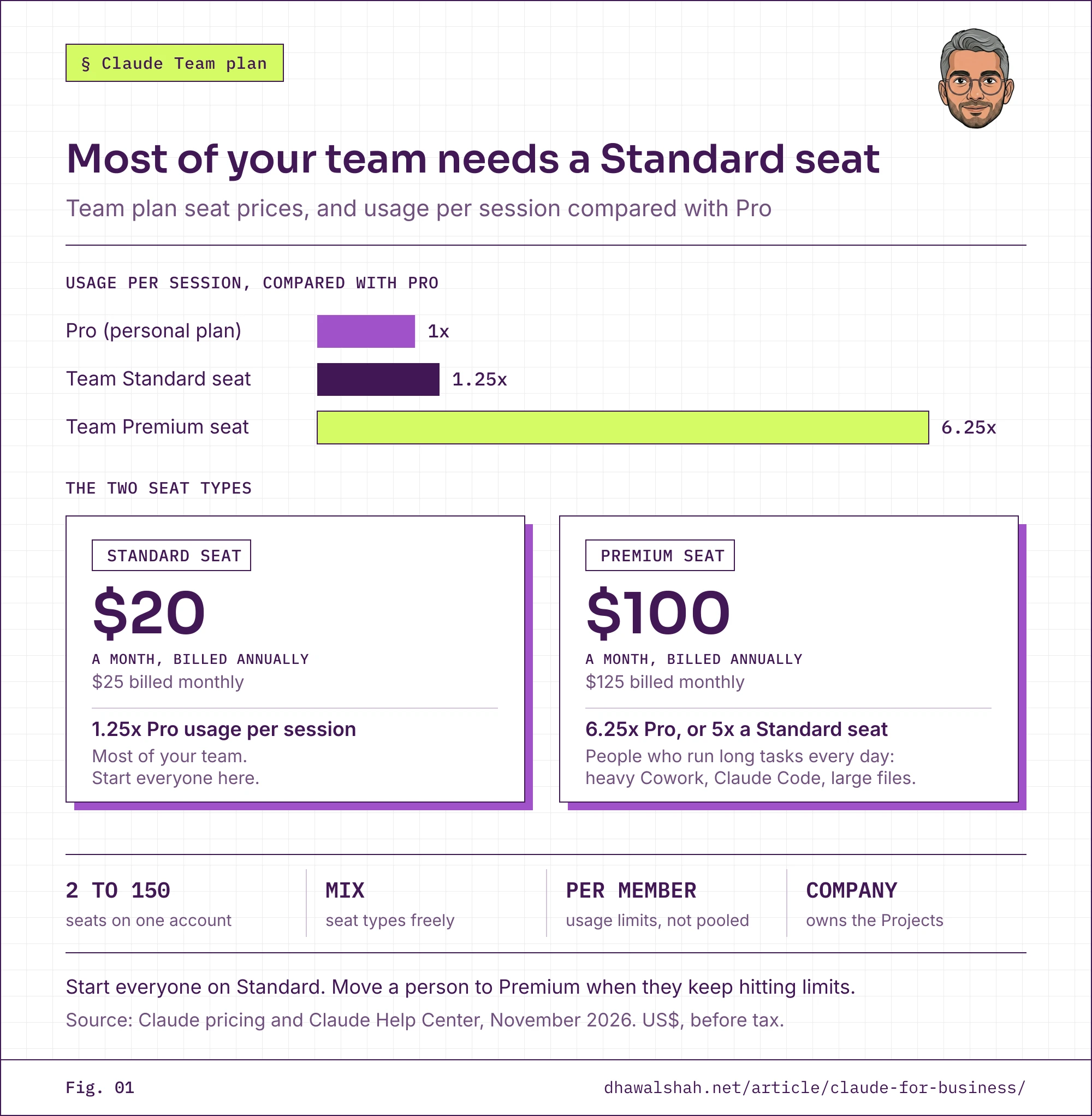
The seat mix is where most of the money goes, so decide it on evidence. Give Premium seats to the people who run long tasks every day: heavy Cowork users, anyone using Claude Code, analysts working through large files. Everyone else starts on Standard. Move someone up when they keep hitting limits, not because they asked first.
My own setup has two layers. I pay for a personal Ultra plan for my longest tasks. The company runs a separate Team account, where I hold a seat like everyone else. Company work and company data stay in the Team account. So when someone leaves, an admin removes their access, and the Projects they built stay with the company.
At 2Stallions we switched every feature on. We also use Chat and Cowork as one place to work, instead of treating them as two tools that need two sets of habits. Switching everything on only works because of the approval rules further down.
Claude Team vs Enterprise: When Do You Need Enterprise?
You need Enterprise when you need audit logs, SCIM or custom data retention. Size alone is not the trigger until you pass 150 seats.
| Team | Enterprise | |
|---|---|---|
| Seats | 2 to 150 | 20 minimum self-serve, 50 through sales |
| Price | $20 Standard or $100 Premium per seat a month, billed annually ($25 and $125 monthly) | US$20 per seat a month, billed annually, plus usage at API rates |
| Single sign-on (SSO) | Yes | Yes |
| SCIM (automatic user provisioning from your identity system) | No | Yes |
| Audit logs | No | Yes |
| Custom data retention | No | Yes |
| Compliance API | No | Yes |
| Connector admin controls | Yes | Yes |
| Usage limits | Per member | No plan or seat limits; spend caps instead |
Sources: Claude pricing and Claude Help Center, 2026. Prices exclude tax.
The pricing model changes on the move. Team is a flat fee per seat with usage limits. Enterprise charges a low seat fee and then bills usage at API rates. That suits a company with a few very heavy users and many light ones. It can cost more than Team for a company where everyone uses Claude all day.
In practice, a contract usually forces the move. A client contract or regulator may ask you to show who accessed what, or to delete data on a schedule. Team cannot give you audit logs or retention controls, so that request is your signal. If you handle financial, health or government client data in Singapore or elsewhere in Southeast Asia, expect it sooner.
Citation capsule
As of November 2026, Claude’s Team plan covers 2 to 150 seats at $20 a month for a Standard seat or $100 for Premium, billed annually. It has SSO but no audit logs, SCIM or custom retention. Enterprise starts at 20 seats, charges US$20 a seat plus usage at API rates, and adds those controls. (Claude pricing, 2026)
How Much Does Claude Cost for a Business?
A small team pays roughly $20 to $100 a seat a month on annual billing, before tax. The mix of Standard and Premium seats decides the bill.
| Team | Seats | Monthly cost (annual billing) |
|---|---|---|
| Founder plus one | 2 Standard | $40 |
| Small team, light use | 8 Standard | $160 |
| Small team, two heavy users | 6 Standard, 2 Premium | $320 |
| Mid-sized team | 25 Standard, 5 Premium | $1,000 |
Figures use the published Team prices as of November 2026: $20 Standard and $100 Premium a seat a month on annual billing (Claude pricing, 2026). Monthly billing costs $25 and $125. Prices exclude tax, so check what applies in your country at checkout. Team plans also include pooled API credits of up to $500 a month, worked out from your seat count.
The seat fee is a small part of the bill. Most of the cost is the time your people spend on output that is not good enough to use. In my workshops, that waste comes from two habits far more often than from the plan.
What Should a Team Set Up First in Claude?
Set up Projects first. It is the step most teams skip. A Project holds the instructions and files Claude needs for one recurring job.
Most workshop teams I meet open a new chat for every task. Each time, they paste in the same background, or forget to. The output is generic because Claude starts from nothing. A Project fixes that. You write the context once: who the client is, the house style, the files that matter, what a good answer looks like. Every chat inside the Project starts from there.
Set up one Project per recurring job, not one per person. “Monthly client report for Client A” is a good Project. “Sarah’s work” is not. Shared Projects on the Team plan mean the next person who picks up the job inherits the setup, instead of rebuilding it from memory.
At 2Stallions, every client who runs several projects with us has a Claude Project, with their context loaded as project files. Before that, whoever picked up the client had to pull the brief, the history and the brand rules together again. Now that context is there when they open the Project. Over time it does a second job. When a teammate finishes a piece of work in the Project, everyone else can see where that dependency stands, without asking.
How Should Your Team Prompt Claude?
Follow Anthropic’s own prompting advice: be clear, give context, be specific, show an example. Most weak prompts I see in workshops skip at least two of those.
Anthropic publishes 11 prompting practices in its guide to prompt engineering (Anthropic, 2025). Five of them do most of the work in everyday business tasks. Be explicit about what you want. Explain why it matters. Be specific about the reader, length and format. Show an example of the standard you want. And give Claude permission to say when it is unsure, instead of guessing.
Here is an illustration with a social post. First, the prompt most people type:
Write a LinkedIn post about our new month-end close service.
Now the same request using those five practices:
Write a LinkedIn post announcing our new month-end close service.
Why: we want finance directors at mid-sized Singapore firms to book a 20-minute call. Our service cuts their month-end close by two days.
Make it 150 to 200 words, in plain British English, with no hashtags and one call to action at the end.
Match the tone of the attached post, which performed well with this audience.
Only use figures from the attached case study. If you need a number it does not contain, write [NEEDS FIGURE] instead of guessing.
The first prompt gets a generic post you rewrite from scratch. The second takes two minutes longer to write and gets a draft you can edit. Put the reusable parts, such as the audience and the tone example, into a Project, and you only write them once. My Claude course guide for Singapore covers where your team can learn these habits in more depth.
The four-week order we use, the questions to ask before you approve a connector, and the checks before a skill goes into your team library. Free, as a PDF.
Get the checklist
How Should You Manage Claude Connectors?
Approve connectors one at a time, starting with your own data. A connector decides what Claude can read, and sometimes what it can send.
A connector links Claude to another tool: your email, your files, your ad accounts, your code. The Team plan includes connectors for Google Drive, Gmail, Google Calendar, GitHub, Microsoft 365 and Slack. Admins control which ones members can use (Claude Help Center, 2026).
Businesses take three broad approaches, and each one fits a different company.
| Approach | How it works | Suits | The risk |
|---|---|---|---|
| Open | Anyone connects anything they use | A founder and one or two others, little client data | Nobody knows what Claude can reach |
| Locked | Only the built-in connectors, nothing added | Firms under strict client or regulatory rules | People route around it with personal accounts |
| Approved list | Each connector is checked once, then switched on for everyone who needs it | Most teams of 5 or more | Approvals become a queue if one person owns them all |
We run an approved list. About 15 connectors are pre-approved, chosen for the work we do and, for our own, tested before release. The first were our own, built in-house for our data and advertising platforms. I wrote about how those work in my guide to ad platform MCPs. GitHub, Gmail and the other tools we use every day came after. Anything new goes through a short request and approval process before anyone can use it. As a small team we usually decide within a day.
There is a fair case for the open approach. It gets people using Claude fast, and in a three-person firm the owner can see everything anyway. The locked approach has a real cost too. If the approved tools do not cover the work, staff paste client data into personal accounts. That is worse than any connector.
A connector request template
A team member fills this in to ask for a new connector. It works as an email, a shared form or a ticket.
| Field | What to write |
|---|---|
| Connector | The tool’s name and who makes it |
| Job it is for | The Project or task that needs it |
| Data it can read | For example, “all of Gmail” or “one shared drive folder” |
| Can it write, send or delete? | Yes or no, and what exactly |
| Read-only option | Does one exist, and is it enough for this job? |
| Who needs it | Named people or one team, not “everyone” |
| Owner | The person who answers for it once it is live |
A connector approval checklist
The admin approves only when every line is a yes.
- The job cannot be done with a connector we already approved.
- We know exactly what data it can read.
- Write, send and delete access is switched off unless the job needs it.
- The maker is known, and someone keeps it working.
- It is switched on only for the people who asked.
- We would notice if it stopped working without an error.
- It has a named owner, and a date to review it again.
- The version is fixed, so an update cannot change what it does without a fresh review.
What can go wrong. In September 2025, a connector called postmark-mcp shipped 15 clean versions on npm, the main public store for JavaScript code. Version 1.0.16 added one line. From then on, it secretly copied every email it sent to an outside address. It had about 1,500 downloads a week when researchers found it (The Register, 2025). Official connectors can be turned too. In May 2025, researchers hid instructions in a public GitHub issue. A Claude agent connected through the official GitHub MCP server read the issue, then copied private repository data into a public pull request (Invariant Labs, 2025). Those two cases are why our checklist asks who makes a connector, what it can send, and which version we approved.
Citation capsule
Businesses manage Claude connectors in three ways: open, locked, or an approved list. At 2Stallions, Dhawal Shah’s agency, a pre-approved list starts with in-house connectors for the company’s own data and ad platforms, then GitHub, Gmail and daily tools. Any new connector needs a request and an approval first. (Dhawal Shah, 2026)
Who Should Be Allowed to Add Claude Skills?
Skills should go through an approval step before the whole team uses them. A skill can look excellent and still be wrong underneath.
A skill is a saved set of instructions, and sometimes scripts, that teaches Claude how to do one job the same way every time. Writing a report in house style is a skill. So is checking an ad against brand rules. Skills are what turn good one-off results into a repeatable process.
At first we let anyone upload a skill. That got people building. It also got messy: hard to see what existed, hard to control, and hard to vouch for the quality of any one skill.
Then two things went wrong. The first was simple. When someone reset their laptop, their skills were gone, because they only lived on that machine. Work the whole team relied on had no copy anywhere else.
The second was about quality. We started using a popular blogging skill for content drafts. The drafts read well. But the sourcing behind its quotes and statistics was poor. A person reviewed every draft, that review caught it, and within a couple of weeks of starting we stopped using the skill. A skill passes the eye test long before it passes a fact check.
So we changed the process. Anyone can still write or propose a skill and submit it. An admin reviews it. Approved skills go into one central library, and each person installs the ones they need from there. If a laptop dies, nothing is lost.
The bar is high. I have analysed a few hundred skills and plugins, our own and other people’s. About 100 look good enough for our Claude Team, and those are going through vetting now. Most of what is out there does not make the cut.
Ways to set up skills for your own team
Teams usually move through these options in roughly this order as they grow.
| Setup | How it works | Strength | Weakness | Suits |
|---|---|---|---|---|
| Each person keeps their own | Skills live on each person’s computer | No process at all | Lost on a laptop reset; no shared standard | One person, or the first few weeks |
| Anyone uploads, no review | Everyone adds skills for everyone | Fast, people learn by building | Duplicates, no owner, unchecked quality | Small teams experimenting |
| Shared Google Drive folder | Approved skills sit in one folder; people copy what they need | Easy for non-technical teams | Weak version history; edits can overwrite each other | Teams that already live in Google Workspace |
| GitHub repository | Approved skills sit in a repository; changes go through review before they merge | Full history, clear review trail, easy rollback | Needs someone comfortable with GitHub | Teams with a technical owner, or many skills |
| Admin only | Only admins add or change skills | Full control | The admin becomes a bottleneck | Regulated work |
We keep ours in a central Google Drive folder, with an admin approval step. My own preference would be GitHub. Every change has a record, changes can be reviewed before they go live, and a bad version can be rolled back. The right choice depends on who maintains the library. A marketing team with no developer will keep a Drive folder current. A team with someone technical gets more from GitHub.
A skill submission template
Whoever wrote the skill fills this in when they submit it.
| Field | What to write |
|---|---|
| Skill name | Short and plain, for example “Monthly client report” |
| Job it does | One sentence |
| Who it is for | The team or role |
| Where facts come from | Files, connectors or web sources it relies on |
| Tested on | Three real tasks, with links to the outputs |
| Overlaps with | Any existing skill that does something similar |
| Owner | The person who keeps it up to date |
A skill approval checklist
The admin approves only when every line is a yes.
- It was tested on three real tasks, not demo ones.
- Every fact or figure it produced traces back to a source a person can open.
- It does not duplicate a skill already in the library.
- It does not need a connector that has not been approved.
- It has a named owner.
- It is stored in the central library, not only on someone’s computer.
- It has a version number or date, so people know which copy is current.
- Someone has read every file in it, including any scripts and the outside links it calls.
What can go wrong. In early 2026, attackers uploaded hundreds of fake skills to ClawHub, the public skills store for OpenClaw. Koi Security documented 341 of them. They posed as trading and productivity tools and installed password-stealing software on Macs. Some passed a virus scan and the store’s own check (Unit 42, 2026). In February 2026, Snyk scanned 3,984 public skills and confirmed malicious code in 76 of them (Snyk, 2026). A skill runs with your access to your files and tools. Anthropic’s own advice is to install skills only from trusted sources, and to read every bundled file and script before using one from anywhere else (Anthropic, 2025).
Approving a skill or connector for your team? Get the skill and connector security checklist: the safety checks we run before anything goes into our library, with the real cases behind each one.
The same thinking applies to AI agents, where I learned the hard way that changes need approval too (AI agent governance). I will cover how we write and review skills in more depth in a separate article on Claude Skills in January.
Citation capsule
Open skill uploads failed at 2Stallions, Dhawal Shah’s agency, in two ways. Skills stored on one laptop were lost when it was reset, and a popular blogging skill produced drafts with poorly sourced quotes, caught by human review within two weeks. Skills now go through admin approval into a central library on Google Drive. (Dhawal Shah, 2026)
How Should You Set Up Claude for Your Own Team?
Match the setup to your size and how sensitive your data is. A three-person studio and a firm with bank clients need different rules.
| Your business | Plan and seats | Connectors | Skills |
|---|---|---|---|
| Founder plus one or two | Team, Standard seats, one Premium for the heaviest user | Open, but list what is connected | Each person keeps their own, with a copy in a shared folder |
| Small team, 5 to 20 | Team, mostly Standard | Pre-approved list, short request form for anything new | Central library in Google Drive, one person approves |
| Growing team, 20 to 150 | Team, Premium for power users | Pre-approved list, request and approval process with named owners | Central library on GitHub, admin approval, version history |
| Regulated or client-sensitive work | Enterprise, for audit logs and retention | Locked to an approved list, reviewed quarterly | Admin-approved library only |
Expect to move down the table as Claude becomes part of client work. The trigger is the first time a skill or connector touches a client deliverable, because from then on someone has to answer for it.
How Do You Get Your Team Using Claude Well?
Train people on their own work, then check in regularly. The setup only pays off if people use it, and that takes training and follow-up.
In 2026, 24% of the 198 founders and business leaders in my Asia-Pacific survey said their team lacks the skills to use AI tools well (APAC AI Adoption 2026). Many of the 60% in my workshops who had never heard of skills already had Claude seats. Nobody had shown them what the seats could do.
Using AI well takes a change in mindset. Most people treat Claude like a search box: one question, one answer, move on. Working well with it is closer to briefing a new colleague. You give context, read the draft, push back, and hand over a bigger piece of the job next time. That habit takes weeks to form.
So plan the training as a rhythm, with the first session as the start.
| When | What | Why |
|---|---|---|
| Week 1 or 2 | A hands-on session for everyone, using the team’s own Projects and real tasks | People learn faster on work they recognise than on demo examples |
| Every two weeks, for the first three months | A short check-in per team: what worked, where people got stuck, which skill or connector they have not tried | Most questions only come up after people try it alone |
| Monthly after that | One person shows a real example from their own work, and the skills library is updated with what people asked for | A colleague’s real example is easier to copy than a trainer’s demo |
Name one person per team as the go-to for Claude questions. It does not need to be the most technical person. It needs to be someone who uses Claude every day and does not mind being asked.
Then look at whether people use what you set up. A login count says little. Better signs are which Projects get opened each week, who has asked for a new skill or connector, and who still pastes the same background into every new chat. Offer that last group a second session.
Citation capsule
In Dhawal Shah’s 2026 Asia-Pacific survey of 198 founders and business leaders, 24% said their team lacks the skills to use AI tools well. In his workshops for five corporate teams and more than 200 people, about 60% had never heard of Claude skills. He recommends a first hands-on session, then check-ins every two weeks for three months. (APAC AI Adoption 2026, 2026)
In What Order Should You Roll Out Claude?
Roll Claude out over four weeks, basics first and extensions last. Each week builds on the one before.
| Week | What to do | Done when |
|---|---|---|
| 1 | Buy Team seats, set the Standard and Premium mix, confirm data settings and SSO | Everyone can log in to the company account, not a personal one |
| 2 | Build one Project per recurring job and run a prompting session | Each team has at least two Projects in daily use |
| 3 | Set the pre-approved connector list, your own data first, and publish the request form | Every live connector has a named owner and passed the approval checklist |
| 4 | Start a central skills library on Google Drive or GitHub, with a submission and approval step | Every shared skill is in the library, has an owner and passed a source check |
After week four, keep the check-ins going every two weeks until the habits hold, and review the setup monthly. Look at who keeps hitting usage limits, which Projects nobody opens, and which connectors and skills have lost their owner. I teach the same order in my Claude workshops for teams, starting with Projects because every later step depends on people using Claude well.
Start With One Project This Week
Pick the job your team repeats most often and build one Project for it. If nobody can say what good output looks like for that job, write that down first.
For a side-by-side view of Claude, ChatGPT and Gemini for teams in this region, see my Asia-Pacific comparison. If you run a small business and want to know where agents fit beyond chat, start with AI agents for small business.
I write about running AI in a real business, including what we switched off. Get the newsletter.
Frequently Asked Questions
How much does Claude cost for a business?
The Team plan costs $20 a seat a month for Standard or $100 for Premium on annual billing, or $25 and $125 billed monthly, before tax. Enterprise costs US$20 a seat a month billed annually, plus usage at API rates, with a 20-seat minimum.
Is Claude free for businesses?
There is a free Claude plan, but it is a personal plan with tight usage limits and no company controls. A business that wants shared Projects, central admin and no training on its data by default needs Team or Enterprise.
Which Claude plan is best for a business?
Team suits most businesses with 2 to 150 people. Choose Enterprise if you need audit logs, SCIM, custom data retention or more than 150 seats. Mix Standard and Premium seats on Team so only heavy users pay for the higher limits.
What is the difference between Claude Pro and the Team plan?
Pro is a personal plan at $17 a month billed annually or $20 monthly. A Team Standard seat costs $20 a month billed annually or $25 monthly and gives 1.25 times Pro’s usage per session, plus shared Projects, central admin and SSO for 2 to 150 people.
How do you train a team to use Claude?
Start with one hands-on session on the team’s own Projects and real tasks. Then hold a short check-in with each team every two weeks for the first three months, and name one go-to person per team. Using AI well is a habit, so it needs follow-up after the first session.
Should employees use personal Claude accounts for work?
Not for company data. A personal account is controlled by the individual, so the company cannot manage access, settings or what happens when that person leaves. Put company work in a Team or Enterprise account the company owns.
Does Claude train on business data?
Anthropic says it does not train on customer data by default on its Team and Enterprise plans. Personal plans have their own settings, which the account holder controls, so check them before using a personal account for anything sensitive.
Is Claude or ChatGPT better for business?
Both work for most business tasks, so choose based on how your team works and which controls you need. We run Claude because of Projects, Cowork and skills. I compared the main assistants for Asia-Pacific teams in ChatGPT vs Claude vs Gemini.
What is Claude for Small Business?
It is a package Anthropic launched on 13 May 2026 that runs inside Claude Cowork. It adds 15 ready-to-run workflows, 15 skills and connectors for tools such as QuickBooks, HubSpot, PayPal, Google Workspace and Microsoft 365. It is not a separate plan.