


Everything here, I've used myself. If you buy through these links, I earn a small commission — but that's not why I wrote this.
TL;DR: OpenClaw automates WhatsApp customer support, invoice processing, social scheduling, and 4 more workflows — all self-hosted on a server you control. Cost: $49–124/month ($24/month VPS plus $25–100 in model API usage). Every automation below complies with WhatsApp’s January 2026 task-specific agent rules for SEA small businesses with 1–50 staff.
Key Takeaways
- WhatsApp banned open-ended AI chatbots on January 15, 2026 (developers.facebook.com). Only task-specific agents (support, booking, shopping) are permitted. All 7 automations below are compliant
- AI agents cost $0.25–0.50 per interaction versus $3–6 for human agents, with 65% of support queries resolved without any human involvement (getnextphone.com, 2025)
- The morning briefing is the recommended starting point: low setup risk and immediate daily value before you trust the agent with customer-facing tasks
- DIY cost for all 7 automations: $49–124/month: $24/month for the VPS you control, plus $25–100/month in model API usage depending on model choice and query volume. WhatsApp messaging fees are on top. A SaaS equivalent covering even half these workflows would cost more, without the control
WhatsApp is where business happens in Southeast Asia. Across the region, 51% of Malaysian SMEs and 43% of Singapore businesses now use WhatsApp Business for customer interactions, with Indonesia at 39% (hashmeta.com, 2026). More than 175 million people message a business on WhatsApp every day (infobip.com, 2026). But for most small businesses, the workflow behind those conversations is entirely manual. And the budget to fix it is small — my APAC AI Adoption 2026 survey of founders and business leaders across 15 markets found 77% spend $500 a month or less on AI, so the automations below are written to run on that kind of footprint, not a six-figure enterprise stack.
OpenClaw changes this. The agent runs on a server you control, connects to your WhatsApp Business account, and handles the repeatable parts of that workflow automatically. The VPS costs $24/month on DigitalOcean. Model API usage adds $25–100/month on top, depending on which model you run and how many queries you handle. WhatsApp Business API messaging fees sit on top of that: roughly $0.02–0.08 per business-initiated message. That is still a fraction of the cost of a human hire, but it’s worth knowing the real number before you start.
One important note before we get to the list. WhatsApp banned open-ended AI chatbots on January 15, 2026 (developers.facebook.com). Only task-specific agents are now permitted for shopping, customer support, and booking. Every automation below is designed to work within those rules. If you try to run a general-purpose chat agent on WhatsApp after that date, your account risks suspension.
This policy change has gone largely unacknowledged in most OpenClaw guides written in 2025. It matters practically: you cannot deploy an agent that responds to any topic a customer raises. You define the task scope, and the agent stays within it.
Each automation runs in its own lane
Each task you give OpenClaw runs in isolation. Your support bot handles support queries. Your booking bot handles bookings. A message that falls outside the defined task gets a preset fallback reply or routes straight to your team. The AI doesn’t improvise. This is what keeps your WhatsApp Business account compliant with the January 2026 rules.
If you haven’t installed OpenClaw yet, the OpenClaw install guide covers the full setup on a DigitalOcean VPS. This article assumes OpenClaw is already running and connected to WhatsApp Business API.
OpenClaw can automate WhatsApp customer support, morning briefings, invoice processing, social content scheduling, appointment booking, competitor price monitoring, and staff shift management, all from a single self-hosted agent on a $24/month VPS. Every automation below complies with WhatsApp’s January 2026 task-specific agent rules and can be configured without writing application code.
A note on the setup sections below: each automation has a technical accordion at the bottom showing the exact configuration steps. If you’re just evaluating which automations to prioritise, skip the accordions. The section text covers what each one does and what it costs.
Haven't installed OpenClaw yet? Download the install guide PDF: covers VPS setup, WhatsApp Business API connection, and cost optimisation.
1. Can OpenClaw Automate WhatsApp Customer Support?
An OpenClaw support agent running on WhatsApp can handle 65% of incoming support queries without any human involvement, based on AI customer service deployment data across SME verticals (getnextphone.com, 2025). The agent reads each incoming message, matches it against your defined task scope (FAQs, order status, return policy), and either answers directly or routes to a human.
Citation capsule
AI agents cost $0.25–0.50 per customer interaction versus $3–6 for human agents, and resolve 65% of support queries without human involvement (getnextphone.com, 2025). For a WhatsApp-first business handling 300 queries per day, that cost gap translates to $750–1,650 in daily savings compared to full manual handling, even after accounting for escalations.
Works well for
retail, e-commerce, F&B delivery, hospitality, clinics, education providers, logistics, financial services.
Real case
Telkomsel, Indonesia’s largest telecoms operator, deployed Veronika — a virtual assistant running on WhatsApp, Telegram, and their app — powered by Azure OpenAI. Daily call volume dropped from 8,000 to 1,000, an 87% reduction, while customer self-service interactions climbed from 19% to 45% (microsoft.com, 2024). Telkomsel is not running OpenClaw specifically, but the automation pattern is identical: the agent handles tier-1 queries, escalates anything outside scope to a human.
The cost advantage compounds over time. At $0.25–0.50 per AI interaction versus $3–6 for a human agent, a business handling 300 WhatsApp queries per day saves $750–1,650 daily compared to full manual handling. Even accounting for the queries that still need a human, the economics are straightforward.
No ready-made WhatsApp support bot exists as a single-click install on ClawHub today. A community-built support operations framework is available as an architecture reference. It covers escalation logic, response templates, and knowledge base structure. You use it as a starting point, not a deployable product. The accordion below walks through the full setup. Before going live with customer-facing automation, the OpenClaw security audit guide covers the checks worth running first.
How to build the full version
Architecture guide — no code required
What you’re building
OpenClaw reads incoming WhatsApp messages, matches them against a knowledge base you maintain in Google Sheets, responds within your defined task scope, and routes anything outside scope to a staff member’s WhatsApp number. No application code required.
Reference skill
Install 1kalin/afrexai-support-operations from ClawHub to study the escalation framework and response templating structure. You won’t deploy it directly.
Components needed
- Google Sheets (your live knowledge base: questions, answers, keywords, categories)
- Google Sheets MCP (so OpenClaw can read and update the sheet)
- A custom SKILL.md file (defines task scope and response behaviour)
- WhatsApp Business API (already connected)
- OpenClaw agent bindings (to isolate this agent to the support channel only)
Step 1: Build your knowledge base in Google Sheets. Create a sheet with four columns: Question, Answer, Keywords, Category. Populate it with your 20–30 most common customer queries. This is the file your agent reads at runtime, so it stays updated without touching OpenClaw’s config.
Step 2: Install the Google Sheets MCP so OpenClaw can query the sheet on each incoming message. The MCP requires OAuth authorisation. Follow the setup in OpenClaw’s MCP documentation.
Step 3: Write a custom SKILL.md using afrexai-support-operations as your structural reference. The skill file must define: (a) the task scope explicitly: order status, FAQs, return policy, nothing else; (b) instructions to query the Sheets knowledge base for each incoming message; (c) escalation trigger keywords (refund, complaint, urgent, human); (d) the escalation destination WhatsApp number; and (e) the fallback message for queries outside scope.
Step 4: Isolate the agent using bindings. In openclaw.json, configure this agent’s bindings to accept only messages from your support channel. Restrict its skills array to only the support skill. An empty or minimal skills list prevents the agent from accessing tools it should never touch. Anything outside the defined task scope returns your fallback message and forwards to the team. This is an architectural guardrail, not just a prompt instruction.
Step 5: Set up escalation. The staff member receiving escalations needs WhatsApp on that number. Configure the escalation message to include the customer’s original message for context so the human responder doesn’t start blind.
Step 6: Run 48-hour supervised mode. Review every conversation for the first two days. Add missed query patterns to your Sheets knowledge base as they surface.
Third-party costs
- WhatsApp Business API: ~$0.02–0.08 per conversation (Meta’s pricing; user-initiated conversations are cheaper than business-initiated)
- Google Sheets MCP: free
- Google Sheets: free
2. What Does an OpenClaw Daily Briefing Actually Do?
A daily briefing agent is the lowest-risk starting point on this list. The setup takes about two hours and the agent only reads data — it takes no actions — which makes it the right place to build confidence before deploying anything customer-facing. It runs on a schedule, pulls from your inbox, calendar, sales dashboard, and overnight orders, then delivers a consolidated WhatsApp or Telegram summary before your day starts.
Citation capsule
A daily OpenClaw briefing agent consolidates inbox, calendar, and overnight orders into a WhatsApp or Telegram summary before the business day starts. The agent only reads data — it takes no actions — making it the lowest-risk starting point for first-time operators. Running on Gemini 2.0 Flash Lite, a briefing-only setup costs roughly $2–5 per month, compared to $20–30 for most SaaS briefing tools.
Works well for
any business with email volume, a calendar, or daily data to review. Especially high-value for founders and operators managing multiple workstreams.
My own OpenClaw setup runs daily briefings, email triage, and general chat using Gemini 2.0 Flash Lite as the base model for routine tasks. Initial setup took me about two hours, including the OAuth flows for Gmail and Google Calendar. The total daily cost lands between $0.50 and $1.50, depending on how many emails came in overnight and how much follow-up chat I do during the day. At that rate, the monthly cost for a briefing-only setup is roughly $2–5. If you’re currently paying $20–30/month for a SaaS briefing tool, it’s worth comparing.
A ready-to-use community skill covers most of this. It pulls from calendar, email, tasks, and news feeds, and delivers a scannable summary in roughly 60 seconds. The main gap for SEA small businesses: it doesn’t pull from sales data or order management systems by default. You add that separately via a Google Sheets connection. The accordion below shows how.
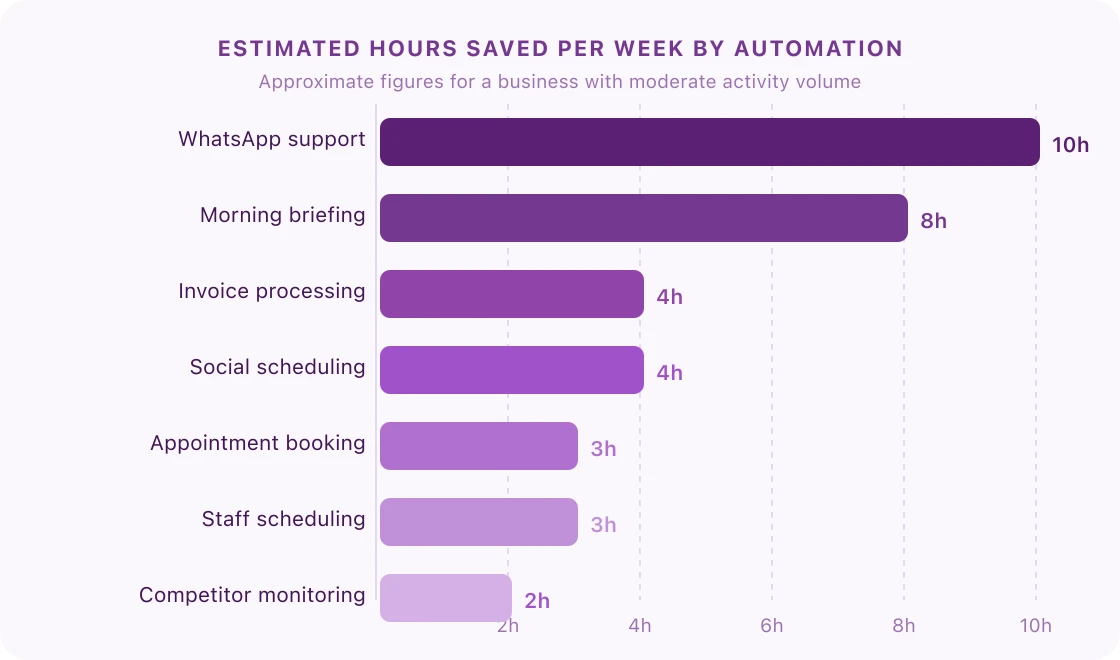
| Automation | Est. hours saved per week |
|---|---|
| WhatsApp customer support | ~10h |
| Morning briefing | ~8h |
| Invoice processing | ~4h |
| Social scheduling | ~4h |
| Appointment booking | ~3h |
| Staff scheduling | ~3h |
| Competitor monitoring | ~2h |
How to build the full version
Architecture guide — no code required
What you’re building
A 7am WhatsApp summary covering overnight orders, unread emails by priority, today’s calendar, and any flagged tasks, delivered on schedule and also available on demand throughout the day.
Start from
1kalin/morning-daily-briefing on ClawHub, production-ready and the recommended starting point. Install it directly.
openclaw skills install 1kalin/morning-daily-briefingComponents needed
- Gmail MCP (for email data)
- Google Calendar MCP (for today’s schedule)
- Google Sheets MCP (for daily sales or order data, if you track it in Sheets)
- Heartbeat config in
openclaw.json
Step 1: Install the skill and MCPs. Each MCP requires a separate OAuth authorisation flow. Follow the connector setup in OpenClaw’s MCP documentation for Gmail and Google Calendar before testing. Grant read access at minimum; write access if you want the agent to mark emails as read.
Step 2: Set the heartbeat in openclaw.json:
{
  "agents": {
    "defaults": {
      "heartbeat": {
        "every": "30m",
        "target": "last",
        "directPolicy": "allow"
      }
    }
  }
}
This keeps OpenClaw polling for scheduled tasks. The morning-briefing skill registers its own daily trigger at the delivery time you configure in the skill’s config file.
Step 3: Configure the skill. In the skill’s config file (in the skill directory after install), set: which Gmail labels to prioritise, which Google Calendar to read, the Sheets tab containing your daily summary, delivery time, and summary length.
Step 4: Set model routing in openclaw.json to keep costs low for this routine summarisation task:
{
  "agents": {
    "defaults": {
      "model": "google/gemini-2.0-flash-lite"
    }
  }
}
Step 5: Test with a manual trigger. Ask your agent “Brief me” to run the briefing on demand. Adjust the skill config until the output covers what you actually need. Only then let the scheduled trigger take over.
Gotchas
- Model routing lives in
openclaw.json, notSOUL.md. - OAuth tokens for Gmail and Google Calendar expire periodically. If your briefing stops arriving, check token validity first.
- The skill delivers a partial briefing if a data source is unavailable rather than failing silently. This is correct behaviour, not a bug.
Third-party costs
- Gmail and Google Calendar: free for personal use; Google Workspace ~$6/user/month for a business domain
- Gemini Flash Lite API: roughly $0.50–1.50/day for briefings plus general chat at moderate usage
3. Can OpenClaw Process Invoices Automatically?
For any business processing 50 or more invoices per month, invoice automation typically delivers the fastest measurable ROI of any OpenClaw automation. AI invoice processing shortens processing times by up to 70% on average, with high-performing teams handling 60–80% of invoices without any human touchpoints (parseur.com, 2025). An OpenClaw agent reads incoming invoices via email, extracts line items, categorises expenses, and flags anomalies like duplicate invoices and vendor mismatches.
Citation capsule
AI invoice processing shortens processing times by up to 70% on average, with high-performing teams handling 60–80% of invoices without any human touchpoints (parseur.com, 2025). An OpenClaw agent reads incoming invoice emails, extracts vendor data and line items, flags anomalies — duplicate invoices, unexpected amounts, unrecognised vendors — and only commits to Xero, QuickBooks, or Google Sheets after a human approval step.
Works well for
product businesses, distributors, logistics operators, marketing agencies, construction, professional services, any business with recurring supplier invoices.
The most common integration for SEA small businesses is a simple Google Sheets setup rather than a full accounting package. If you’re not on Xero or QuickBooks yet, a Sheets-based workflow handles the essentials and costs nothing extra.
A document extraction tool available on ClawHub, powered by Nanonets, handles the OCR layer. It reads invoice PDFs and pulls out vendor name, amounts, and line items, and flags low-confidence extractions so you can catch errors before they hit your ledger. The gaps: it doesn’t connect to your accounting software (Xero, QuickBooks, or Sheets) or check for duplicate invoices out of the box. You configure those separately. Your invoice documents are sent to Nanonets’ servers for processing. Fine for most businesses, but review their data terms before uploading sensitive supplier contracts.
How to build the full version
Architecture guide — no code required
What you’re building
OpenClaw reads invoice emails as they arrive, extracts vendor, amount, line items, and invoice date via DocStrange, pushes the structured data to Xero or a Google Sheets ledger, flags anomalies (duplicates, unexpected amounts, unknown vendors) via WhatsApp, and sends a daily 6pm summary of what was processed.
Start from
shhdwi/docstrange on ClawHub for the extraction layer.
openclaw skills install shhdwi/docstrangeComponents needed
- Gmail MCP (to read invoice emails and attachments)
- DocStrange API key (from nanonets.com, free tier: 500 pages/month)
- Xero MCP or Google Sheets MCP (for the output destination)
- Daily cron for the status summary
Step 1: Create a dedicated invoice Gmail label. Set up a Gmail filter to auto-label emails from your suppliers with “Invoices”. This gives DocStrange a clean, targeted inbox to watch.
Step 2: Install DocStrange and configure your API key. Get your key from nanonets.com, then add DOCSTRANGE_API_KEY as an environment variable on your VPS. Set up the skill’s extraction schema to return: vendor name, invoice number, invoice date, line items, total amount, and currency.
Step 3: Install the Gmail MCP and authorise it to read attachments from your Invoices label.
Step 4: Enable the Lobster plugin in openclaw.json. Lobster is OpenClaw’s deterministic workflow shell. It lets you pause the pipeline after extraction and wait for your explicit approval before writing anything to your accounting system:
{
  "tools": {
    "alsoAllow": ["lobster"]
  }
}
Step 5: Define the Lobster pipeline in a .lobster file in your workspace. The pipeline extracts invoice data, sends you a WhatsApp preview, then only commits to Xero or Sheets after you approve:
name: invoice-triage
steps:
  - id: extract
    command: docstrange.extract --source gmail-invoices
  - id: preview
    command: whatsapp.notify --preview-from-stdin
    stdin: $extract.stdout
    approval: required
  - id: commit
    command: sheets.append --ledger invoices
    stdin: $extract.stdout
    condition: $preview.approved
When the pipeline hits approval: required, it returns a resumeToken and waits. You review the WhatsApp summary, reply to approve, and the commit step runs. Disapprove and nothing is written.
Step 6: Connect your accounting output. For Xero or QuickBooks: check the OpenClaw MCP docs for verified integrations. If you’re not on either yet, the Google Sheets MCP is simpler. Create a ledger sheet with columns for Date, Vendor, Invoice Number, Amount, Category, Currency, Status.
Step 7: Define your anomaly rules in SOUL.md: flag duplicate invoice numbers, amounts more than 20% above your historical average for that vendor, and invoices from unrecognised senders.
Step 8: Set a daily 6pm summary cron in openclaw.json. The summary should report: invoices processed today, total value, any anomalies flagged, and items awaiting your review.
Step 9: Test with 5 real invoices before enabling full automation. Check extraction accuracy per field, confirm Xero or Sheets entries are correct, and verify anomaly alerts fire as expected.
Third-party costs
- DocStrange/Nanonets: free up to 500 pages/month; ~$0.08/page above that
- Xero: $15–40/month depending on your SEA market plan
- QuickBooks: $10–25/month
- Google Sheets: free (if used as output instead of accounting software)
4. How Does OpenClaw Automate Social Media Scheduling?
AI content tools cut campaign production time by up to 60% for teams automating platform-specific content adaptation (sqmagazine.co.uk, 2025). The OpenClaw workflow connects your blog RSS feed to your social accounts and generates platform-specific variations of each post automatically. A new article publishes on your website, the agent detects it via RSS, writes adapted versions for Facebook, Instagram, LinkedIn, and LINE (relevant for Thailand), and queues them for scheduled posting.
Citation capsule
AI content tools cut campaign production time by up to 60% for teams automating platform-specific content adaptation (sqmagazine.co.uk, 2025). An OpenClaw RSS-to-social workflow detects new blog posts, generates platform-specific variations for Facebook, Instagram, LinkedIn, and LINE, and queues them for posting after a WhatsApp approval step — without requiring access to a scheduling dashboard.
Works well for
E-commerce, restaurants, wellness and beauty, retail, consultants, agencies, any business publishing content regularly.
Industry context
Social scheduling fits naturally after the morning briefing — it extends the automation from passive (reading data) to active (publishing content) without requiring customer-facing access. The agent handles the repetitive adaptation work: resizing copy for each platform’s character limits, adjusting tone, generating hashtags, while you focus on the source content. Most businesses deploying this see 3–4 hours per week reclaimed from content distribution.
For SEA markets, LINE is worth including as a separate channel for Thailand. The agent handles platform-specific adaptation automatically once you configure the output channels.
A ready-made OpenClaw skill connects to PostSyncer, a social scheduling service that handles the actual publishing to Facebook, Instagram, and LinkedIn. OpenClaw generates the content and manages your approval step. PostSyncer queues and posts it. The tradeoff: PostSyncer’s free tier limits how many posts you can schedule, and you’re adding a second service to manage. The accordion below also covers how to skip PostSyncer entirely and publish direct to Meta and LinkedIn if you prefer.
How to build the full version
Architecture guide — two paths: via PostSyncer or direct API
What you’re building
When a new post publishes on your website, OpenClaw detects it via RSS, generates platform-adapted versions (Facebook caption, Instagram caption with hashtags, LinkedIn excerpt), sends drafts to your WhatsApp for approval, and schedules them to post at your configured times after you approve.
Path A: via PostSyncer (faster setup, adds SaaS dependency)
Install abakermi/openclaw-postsyncer from ClawHub:
openclaw skills install abakermi/openclaw-postsyncer- Create a PostSyncer account at postsyncer.com and connect your Facebook Page, Instagram Business account, and LinkedIn Company Page there
- Get your PostSyncer API key from Settings and add
POSTSYNCER_API_KEYas an environment variable on your VPS - Configure an RSS trigger in SOUL.md to detect new posts from your blog feed
- Write a content adaptation prompt in SOUL.md that generates platform variations (character limits, hashtag counts, tone adjustments per platform)
- Enable Lobster in
openclaw.json("tools": { "alsoAllow": ["lobster"] }) and define a.lobsterpipeline with anapproval: requiredgate between draft generation and the PostSyncer queue call. The pipeline sends drafts to your WhatsApp and waits for your confirmation before scheduling anything. This prevents bad drafts from going live without your review.
Path B: direct API (no extra SaaS, more setup)
- Register a Meta Developer app at developers.facebook.com and generate a long-lived Page access token covering your Facebook Page and linked Instagram Business account
- Register a LinkedIn Developer app and get a Company Page access token
- Enable Lobster (
"tools": { "alsoAllow": ["lobster"] }) and write a.lobsterpipeline: RSS trigger → generate variants →approval: requiredWhatsApp preview → Meta Graph API call + LinkedIn API call on approval - Write the content generation skill in SOUL.md and store access tokens as environment variables on your VPS
- Set a calendar reminder to refresh Meta tokens every 60 days (they expire; LinkedIn tokens last longer)
Gotchas
- Instagram requires a Business or Creator account linked to a Facebook Page. Personal accounts cannot receive automated posts via API
- LinkedIn’s API rate limits restrict posting frequency; posting more than once per hour on a single Company Page can trigger temporary restrictions
- For Thailand, LINE does not have an open scheduling API. LINE posts require the LINE Messaging API and a separate integration not covered by PostSyncer or OpenClaw natively
Third-party costs
- PostSyncer (Path A): free tier limited to a small number of scheduled posts; paid plans ~$10–20/month
- Meta Developer app (Path B): free, requires business verification
- LinkedIn API (Path B): free for Company Page posts
5. Can OpenClaw Handle Appointment Booking on WhatsApp?
Service businesses using AI booking agents on WhatsApp convert 15–52% of inbound enquiries into confirmed appointments (trysetter.com, 2026). If you’re handling bookings manually today, most of that back-and-forth (confirming availability, sending slot options, reminders, cancellations) runs through WhatsApp already. An OpenClaw agent takes over that conversation entirely. The customer messages in, the agent checks your calendar, confirms a slot, books it, and sends a confirmation.
Citation capsule
Appointment booking is one of three task categories explicitly permitted under Meta’s January 2026 WhatsApp task-specific agent rules (developers.facebook.com). AI booking agents convert 15–52% of inbound enquiries into confirmed appointments (trysetter.com, 2026). An OpenClaw booking agent checks Google Calendar availability, confirms slots in natural language, and sends WhatsApp reminders 24 hours and 2 hours before the appointment.
Works well for
clinics, dental practices, hair salons, fitness studios, tutors, consultants, physiotherapists, legal practitioners, any service business managing a calendar.
Real case
Setter AI, a booking automation platform, deployed AI appointment agents for service businesses with conversion rates of 15–52% on inbound leads to confirmed appointments (trysetter.com, 2026). Their focus is high-ticket sales; the underlying pattern is the same for a dental clinic or hair salon, just without the multi-step qualification flow. OpenClaw runs the same logic self-hosted, without per-seat fees.
This automation is explicitly permitted under WhatsApp’s January 2026 task-specific agent rules. Booking is one of the three approved use cases (alongside shopping and customer support), so there’s no policy risk in deploying it.
A ready-to-use community skill handles natural language booking well. It understands phrasing like “next Tuesday at 3pm”, checks your availability, and creates the event. Two gaps to be aware of: it stores bookings in a local file by default rather than Google Calendar, and it doesn’t send WhatsApp reminders out of the box. Both are configurable with the additional steps in the accordion below.
How to build the full version
Architecture guide — no code required
What you’re building
A customer messages your WhatsApp number to book. The agent checks your Google Calendar for available slots, confirms a time, creates the event, and sends WhatsApp reminders 24 hours and 2 hours before the appointment.
Start from
toughworm/advanced-calendar on ClawHub.
openclaw skills install toughworm/advanced-calendarComponents needed
- Google Calendar MCP (for live read/write. Write access is required, not just read)
- WhatsApp Business API (already connected)
- Cron for reminder messages
Step 1: Install advanced-calendar and the Google Calendar MCP. During the OAuth consent flow, grant write scope (calendar.events). Read-only access will allow the agent to check availability but silently fail when creating bookings.
Step 2: Configure your booking parameters in the skill config: available hours (e.g. 09:00–18:00), working days, appointment duration, buffer time between slots, and how far in advance someone can book.
Step 3: Write your booking script in SOUL.md. Define: the opening message when someone says “book” or “appointment”, the confirmation message format, and the cancellation handling. Keep responses short: WhatsApp replies, not email..
Step 4: Set up the reminder cron. In openclaw.json, add a cron that checks every hour for appointments in the next 24 hours and 2 hours, and sends WhatsApp messages to customers who haven’t yet received a reminder. Store sent-reminder state in a Sheets log or local file to prevent double-sends.
Step 5: Isolate the booking agent. In openclaw.json, restrict this agent’s skills array to only the booking and calendar skills. Use bindings to route only booking-intent messages here; everything else goes to your general support flow or returns a fallback message.
Step 6: Test end-to-end. Use a test number to book, receive confirmation, check the calendar entry, and verify both reminder messages fire at the right times. Also test cancellation: the agent should update the calendar and confirm to the customer.
Third-party costs
- Google Calendar API: free
- WhatsApp Business API: ~$0.02–0.08 per reminder message (each reminder opens a business-initiated conversation)
6. How Does OpenClaw Monitor Competitor Prices on Shopee and Lazada?
For sellers on Lazada, Shopee, or Tokopedia where competitor pricing is publicly visible, manual price checks are one of the most time-consuming repetitive tasks. Retailers using price intelligence tools consistently report margin improvements from smart pricing rules, often visible within days of going live (intelligencenode.com, 2026). An OpenClaw monitoring agent checks defined competitor product URLs on a schedule, extracts prices, compares them against your own, and alerts you to significant changes via WhatsApp.
Citation capsule
Lazada, Shopee, and Tokopedia load product prices dynamically via JavaScript — a basic web reader returns no price data. OpenClaw uses a headless Playwright browser (free, open source) to render each page and extract the price element via CSS selector. A daily cron checks 50–100 competitor products and sends a WhatsApp alert when a competitor drops below a configured threshold, plus a weekly price movement summary every Monday.
Works well for
e-commerce, retail, F&B (tracking competitor menu pricing), hospitality (hotel room rates), travel agents, beauty products.
Real case
One IntelligenceNode customer — a wellness company tracking 10,000+ competitor products daily — reports that smart pricing rules improved margins, with results visible within days of going live (intelligencenode.com, 2026). That’s enterprise scale, but the monitoring logic is identical at 50 SKUs on Shopee. An OpenClaw setup covers that range for a fraction of the cost.
Check the terms of service for each platform before deploying a scraper. Tokopedia and Shopee allow public product page access, but automated scraping at high frequency can trigger rate limiting. A daily check on 50–100 competitor products is generally fine.
A community-built scraping framework on ClawHub provides the architecture reference for building the monitor, covering data extraction patterns, rate limiting, and legal compliance. It’s not a plug-and-play price tracker; it’s the design guide you work from. The key technical challenge for SEA marketplaces: Lazada, Shopee, and Tokopedia load their prices dynamically, so a simple page reader won’t see the price at all. The accordion below explains how to work around that.
How to build the full version
Architecture guide — no code required
What you’re building
A daily agent that checks defined competitor product pages on Lazada, Shopee, or Tokopedia, extracts current prices, compares them against your baseline, sends a WhatsApp alert when a competitor undercuts your threshold, and produces a weekly price movement summary.
Reference skill
Install 1kalin/afrexai-web-scraping-engine from ClawHub to study the architecture and anti-detection patterns. Use it as your design reference, not a deployable skill.
Components needed
- Playwright MCP (headless browser for JS-rendered marketplace pages)
- Google Sheets MCP (for your URL list, price baseline, and history log)
- A custom SKILL.md for the monitoring and comparison logic
- Daily cron and weekly summary cron
Step 1: Build your competitor URL list in Google Sheets. Create a sheet with columns: Product Name, Competitor, URL, Your Price, Alert Threshold, Last Checked Price, Last Checked Date. Start with your top 20–50 SKUs.
Step 2: Install the Playwright MCP. Playwright is open source and gives OpenClaw a headless browser that can load JavaScript-rendered pages and extract text from the DOM. This is what makes Lazada and Shopee prices visible to the scraper.
Step 3: Write a custom SKILL.md using afrexai-web-scraping-engine as your architecture reference. The skill should: read the URL list from Sheets, use Playwright to load each page, extract the price element, compare to your threshold, and write the result back to Sheets.
Step 4: Identify CSS selectors for each marketplace. Open a competitor product page, right-click the price, and select “Inspect” in your browser. Note the CSS class for the price element on Lazada and Shopee. Add these to your Sheets URL list so the skill knows which selector to use per domain.
Step 5: Configure the daily cron in openclaw.json to run the monitoring skill at 8am each day.
Step 6: Set the alert trigger in SOUL.md: if any competitor price drops below (your price minus threshold), send an immediate WhatsApp alert with the product name, competitor, their current price, and your price.
Step 7: Add a Monday morning summary cron. The agent reads 7 days of price history from Sheets and sends a summary of which products saw movements during the week.
Gotchas
- Marketplace page structures change when platforms update their UI. CSS selectors will break. Build a fallback alert when a selector returns empty, so you know to update it
- Scraping more than once per day on 100+ URLs risks IP blocks. Playwright with a residential proxy service reduces this if daily isn’t frequent enough for your category
- Check each platform’s ToS. Viewing public product pages is generally fine; high-frequency automated access is a grey area, especially in flash-sale periods
Third-party costs
- Playwright MCP: free (open source)
- Residential proxy service (if needed): $10–30/month
- Google Sheets: free
7. Can OpenClaw Manage Staff Shifts Through WhatsApp?
Manual shift scheduling is a disproportionate time sink for small teams. CitizenM Hotels describe their spreadsheet-based approach as “a whooping four-hour job” before switching to digital tools (deputy.com, 2026) — and for most F&B and retail operators, that coordination runs almost entirely through WhatsApp threads. An OpenClaw scheduling agent cuts through this by collecting availability from staff via WhatsApp, building rosters against your coverage rules, and handling sick-day substitutions automatically when someone calls out.
Citation capsule
CitizenM Hotels reduced scheduling from “a whooping four-hour job” using spreadsheets to 15 minutes after switching to digital tools (deputy.com, 2026). An OpenClaw scheduling agent replicates this for small F&B and retail teams: collecting WhatsApp availability from staff on Friday evenings, generating rosters with a Sunday approval gate, and handling sick-day substitutions automatically when a staff member calls out.
Works well for
restaurants, cafes, convenience stores, retail outlets, warehouses, delivery operations, hotels, clinics, call centres.
Real case
CitizenM Hotels moved from manual spreadsheet scheduling — described as a “four-hour job” — to digital-assisted scheduling that takes 15 minutes (deputy.com, 2026). The same pattern applies to a small restaurant or retail team using OpenClaw as the scheduling layer, with staff communication running through WhatsApp they already use.
The sick-day substitution workflow is where this automation delivers disproportionate value for small businesses. Instead of a manager spending 45 minutes making calls when someone cancels, the agent messages the next available staff member on the list and confirms the substitution automatically.
No ready-made staff scheduling skill exists on ClawHub today. This one you configure from scratch using OpenClaw’s scheduling tools. It’s the most involved setup on this list, but it’s also the one that replaces the most manual management time. The accordion below walks through the full build.
How to build the full version
Architecture guide — custom skill, no code required
What you’re building
Every Friday evening, OpenClaw messages each staff member on WhatsApp to collect their availability for the following week. On Sunday evening it generates the roster against your coverage rules and posts it to your staff WhatsApp group. When a staff member calls in sick, the agent contacts the next available substitute and confirms the shift automatically.
Reference skills
Install i-mw/cron-mastery to understand how to configure recurring cron jobs correctly in OpenClaw, and review 1kalin/afrexai-gym-fitness for scheduling logic patterns. No single skill covers this use case. You’re building it as a custom SKILL.md.
Components needed
- Google Sheets (staff roster, shift definitions, weekly availability responses)
- Google Sheets MCP (read/write access for the agent)
- WhatsApp Business API (already connected)
- Two cron jobs: Friday availability collection + Sunday roster generation
- A custom SKILL.md for availability parsing, roster generation, and sick-day substitution
Step 1: Create your staff roster in Google Sheets. Three tabs:
- Staff: name, WhatsApp number, roles, max hours/week, min rest hours
- Shifts: shift names and times, minimum coverage per role (weekday vs. weekend)
- Availability: auto-populated by the agent as responses arrive each week
Step 2: Install the Google Sheets MCP and grant read/write access to the roster file.
Step 3: Write the availability collection skill. This is a custom SKILL.md that: reads the Staff tab, sends a standardised availability request message to each staff member’s WhatsApp on Friday at 6pm, parses their responses (“available Mon–Thu”, “can’t do Wednesday”), and writes results to the Availability tab.
Step 4: Write the roster generation trigger with a Lobster approval gate. Enable Lobster in openclaw.json ("tools": { "alsoAllow": ["lobster"] }), then define a .lobster pipeline for the Sunday trigger: read Availability tab, generate roster, send you a WhatsApp preview with an approval: required gate, then broadcast to staff WhatsApp group on approval. This prevents a roster with missing coverage or an incorrect shift from going to the whole team before you’ve reviewed it.
Step 5: Write the sick-day substitution trigger. Define keywords in SOUL.md that flag a sick-day message (“MC”, “sick”, “cannot come”). When detected, the skill reads that day’s roster, identifies the open shift, and messages the next available staff member from the Availability tab. Once confirmed, it updates the roster in Sheets and notifies the manager.
Step 6: Use i-mw/cron-mastery as your cron setup reference. The Friday and Sunday crons are time-sensitive. This skill covers the correct patterns for reliable scheduled jobs in OpenClaw.
Step 7: Test the full cycle. Run the availability collection manually with 3–4 test numbers. Verify Sheets updates correctly. Generate a test roster and check coverage rules fire. Simulate a sick-day call-out and verify the substitution message goes to the right person.
Third-party costs
- Google Sheets: free
- WhatsApp Business API: ~$0.02–0.08 per staff member per week for the availability collection conversation. For a 10-person team: roughly $1–3/week
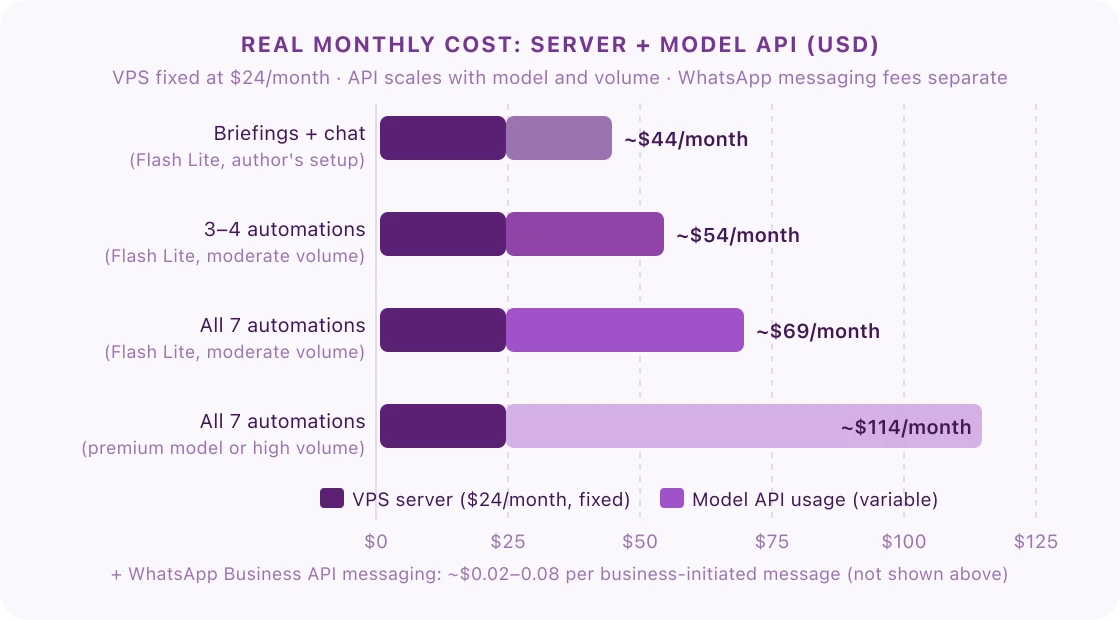
| Setup | VPS (fixed) | Model API (est.) | Total est./month |
|---|---|---|---|
| Briefings + chat (Flash Lite, author's setup) | $24 | ~$20 | ~$44 |
| 3–4 automations (Flash Lite, moderate volume) | $24 | ~$30 | ~$54 |
| All 7 automations (Flash Lite, moderate volume) | $24 | ~$45 | ~$69 |
| All 7 automations (premium model or high volume) | $24 | ~$90 | ~$114 |
WhatsApp Business API messaging fees are separate (~$0.02–0.08 per business-initiated message, not included above).
Which of these setups would be most useful for your business? Vote in the poll and we'll build the most-requested one step-by-step first.
Set up your own private AI assistant on DigitalOcean in about 2 hours. Covers VPS setup, WhatsApp Business API connection, and cost optimisation for SEA small businesses.
Download the PDF
Frequently Asked Questions
Does OpenClaw work with WhatsApp Business API in Southeast Asia?
Yes. OpenClaw connects to WhatsApp via the official WhatsApp Business API, which is available in all Southeast Asian markets. You need a verified Meta Business account and a dedicated phone number. Setup typically takes 2–3 business days for Meta's verification. The January 2026 policy change means your agent must stay within a defined task scope (support, booking, or shopping) to remain compliant.
How much does running all 7 automations cost per month?
The total monthly cost for a small business running all 7 automations is roughly $49–124. The [DigitalOcean](https://www.dpbolvw.net/click-101704546-15836243) VPS costs $24/month as a fixed base. Model API usage adds $25–100/month depending on which model you run and how much traffic you handle. WhatsApp Business API messaging fees are on top: roughly $0.02–0.08 per business-initiated message. Running a cheaper model like Gemini Flash Lite for routine tasks (briefings, social scheduling, invoice categorisation) keeps API costs toward the low end of that range.
Do I need a developer to set these up?
The morning briefing and social scheduling automations can be configured without coding using ClawHub skills and SOUL.md edits. WhatsApp customer support, invoice processing, and appointment booking typically require 2–4 hours of technical setup each. Competitor price monitoring requires basic knowledge of CSS selectors. The install guide covers prerequisites for all seven setups.
Can OpenClaw handle multiple languages for SEA markets?
Yes. With SEA-LION integration, OpenClaw supports Bahasa Indonesia, Bahasa Malaysia, Thai, Vietnamese, Filipino, Tamil, and Burmese alongside English ([sea-lion.ai](https://sea-lion.ai/blog/openclaw-with-sea-lion-running-multilingual-personal-ai-assistants/), 2026). For most businesses, configuring a multilingual SOUL.md instruction is enough for the agent to detect and respond in the customer's language without a separate integration.
Want one of these built for your business specifically? Get in touch. I work with SEA operators on custom OpenClaw setups.
Where to Start with OpenClaw
The order above reflects setup complexity, not business value. If you’re starting from zero, the morning briefing gives you results in the same day with no operational risk. If customer-facing automation is the priority, the WhatsApp support bot delivers the fastest ROI for businesses handling 50 or more inbound messages daily.
A few practical notes on running these together: model routing matters. Set a cheap model (Gemini Flash Lite or similar) for high-volume, low-complexity tasks like invoice categorisation and social caption generation. Reserve Claude Sonnet or better for customer-facing conversations where response quality affects satisfaction.
The security audit guide covers the checks worth running before you connect the agent to customer-facing channels. And if you’re still deciding whether OpenClaw or a hosted alternative makes more sense for your situation, the Claude Managed Agents vs OpenClaw comparison walks through the trade-offs directly.
For the broader context on where these automations fit in the AI agent ecosystem — and how to decide between OpenClaw, Hermes, and enterprise alternatives — see the AI Agents for Business 2026 field guide.