


Everything here, I've used myself. If you buy through these links, I earn a small commission — but that's not why I wrote this.
TL;DR: I ran the official ClawHub security audit on my OpenClaw setup — it passed every check. Then I dug deeper and found three real problems hiding underneath: a hidden backdoor to my server’s configuration, a firewall that had been silently switched off, and two credential files left unlocked. This guide walks through everything I ran, what I found, and exactly how I fixed it — in plain English.
Update: September 2026
I published this audit on 28 March 2026. The next day, CVE-2026-32922 was published against OpenClaw: a privilege escalation scoring 9.9 on CVSS 3.1, in which a caller holding a limited operator.pairing token could call device.token.rotate, ask for admin scopes, and be issued them, because the function never checked the requested scopes against the caller’s own. From there, system.run gives arbitrary command execution (ARMO, March 2026).
Every one of my five checks passed the day before that landed. None of them would have caught it, and neither would my manual audit below. Not because the checks are wrong, but because they all ask the same kind of question: is this instance configured correctly right now. None of them asks the question that would have mattered, which is whether the software is current.
The fix shipped in 2026.3.11 on 13 March, sixteen days before the CVE was published and fifteen days before I ran my audit. So the vulnerability was already patched upstream while I was writing an article about how secure my setup was. If I had not updated since installing in early March, I was running a 9.9 with a clean audit report in my hand.
Citation capsule
CVE-2026-32922, published 29 March 2026, is a privilege-escalation flaw in OpenClaw scoring 9.9 on CVSS 3.1 and 9.4 on CVSS 4.0. A scope-validation failure in
device.token.rotatelet a caller holding a limitedoperator.pairingtoken mint a fulloperator.admintoken, then execute arbitrary commands viasystem.run. It affected all versions before 2026.3.11, which was released on 13 March 2026. Configuration-level security audits do not detect it, because the instance is correctly configured; the defect is in the version. (ARMO, 2026)
Step 0, which this article originally missed: check your version
Before any of the five checks below, run this:
openclaw --versionThen compare it against the current release. If you are behind, stop auditing and update first. An audit of an out-of-date instance tells you that yesterday’s holes are closed while today’s are open.
To be clear about which “pairing” this is
This article recommends setting channels.telegram.dmPolicy to pairing so strangers cannot message your bot, and that advice is unchanged and still correct. CVE-2026-32922 is a different mechanism entirely: OpenClaw’s device-pairing subsystem, which issues scoped tokens to connected devices through a challenge-response protocol. The two share a word and nothing else. Setting your Telegram policy to pairing did not expose you to this CVE.
The wider picture since March
The March CVE was not isolated. CVE-2026-25253, disclosed on 3 February 2026, was a one-click remote code execution triggered by visiting a malicious webpage; at disclosure, over 40,000 OpenClaw instances were exposed on the internet and 63% were assessed as vulnerable (ProArch, 2026). By April 2026 the project had more than 138 disclosed CVEs. That is a young, fast-moving, very widely deployed codebase, which is what you would expect and is not by itself an argument against self-hosting. It is an argument for treating updates as a security control rather than a maintenance chore.
OpenClaw 2.0 changed the security model
Version 2026.8.1, which the project calls OpenClaw 2.0, reworked several of the things this article audits. Approvals are now bound to the specific request, command, session and person that received them, rather than floating free. Protected credentials can reach a destination without ever entering model-visible text, which materially changes the credential-exposure question in Issue 3 below. Host environment variables from untrusted workspace sources are now sanitised, SSH tunnel checks are pinned to loopback, and device-backed pairings were removed outright.
What that means for this article: the three issues below are all still worth checking and the fixes still apply. But if you are on 2.0, the credential handling in Issue 3 and the config-exposure problem in the Bonus Lesson are both improved at the platform level, so verify against your own version rather than assuming this March snapshot describes your install.
I’ve been running OpenClaw on a DigitalOcean Singapore server since early March. It runs my morning briefings, triages my email, and I’m actively building new skills for it. The setup works well — but a LinkedIn message ten days after I published the install guide pushed me to actually check whether it was secure.
A contact had seen the article and decided to poke at my setup. He couldn’t get in — but he flagged that the tutorial itself was giving away enough clues about how my system was structured that someone with more patience could try. He was right.
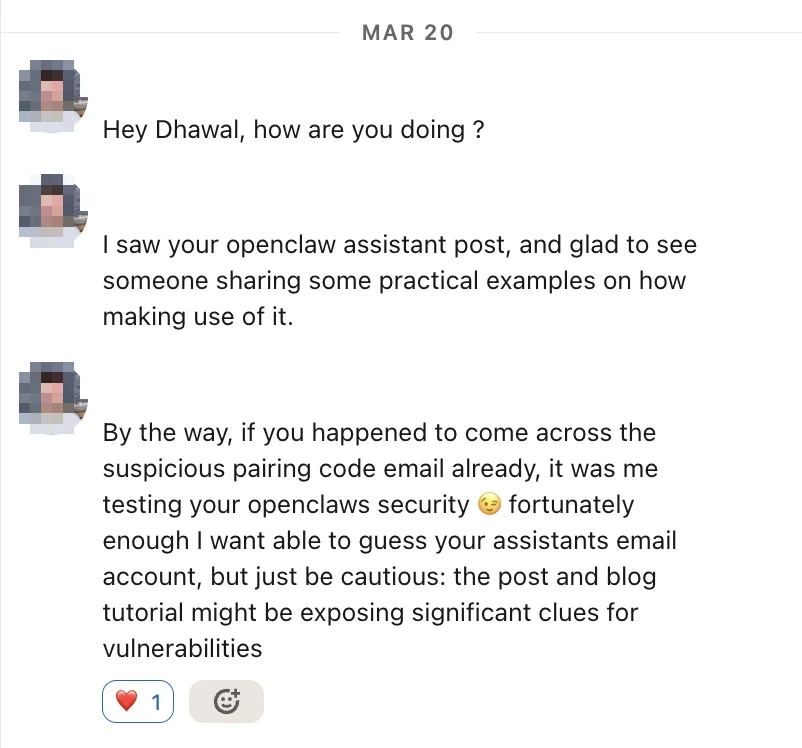
That message sent me down a rabbit hole for an afternoon. This is what I found.
Want the checklist version? Download the Security Checklist PDF — 33 items across 8 sections, with the exact commands to run.
Step 1: Run the Official ClawHub Audit Skill
The quickest first check is to run the openclaw-security-audit skill from ClawHub. Install it from within your OpenClaw setup and run it directly in Telegram. It takes about 30 seconds.
It checks five things. Here’s what each one actually means:
- Is your control port hidden from the internet? OpenClaw has a control port (think of it as a back door into your AI assistant). It should only be reachable from the server itself — not from the open internet. If it’s exposed publicly, anyone online could try to connect to it.
- Is OpenClaw running as the server’s superuser? On Linux, “root” is the all-powerful admin account — it can do anything. OpenClaw should run as a limited user called
openclaw, not as root. If it runs as root and something goes wrong, an attacker would have full control of your entire server. - Are your passwords sitting in plain text? The skill checks that API keys and credentials aren’t stored in unprotected files.
- Are your config files locked? File permissions control who can read what. Your OpenClaw config files should only be readable by OpenClaw — not by every other process running on the server.
- Did anything install itself without your permission? A compromised plugin could quietly install a background process that keeps running even after you think you’ve closed a hole. The skill checks for anything unexpected.
Here’s what I got:
OPENCLAW SECURITY AUDIT REPORT
Host: openclaw-dhawal-pa  OS: Ubuntu 24.04.4 LTS

[CHECK 1] Gateway Network Exposure  — OK
[CHECK 2] OpenClaw Process Health   — OK
[CHECK 3] Credentials & Secret Storage — OK
[CHECK 4] File System Permissions   — OK
[CHECK 5] Persistence/Unexpected Services — OK

SUMMARY: 5 checks. OK: 5  VULNERABLE: 0
All green. I almost stopped there — but five checks is a shallow scan. It tells you whether the obvious front door is locked. It doesn’t check the windows, the back gate, or whether someone left a spare key under the mat. So I kept going.
Step 2: Run a Deeper Manual Audit
Save the script below as audit-openclaw.sh on your server and run it with bash audit-openclaw.sh. It checks six more things the ClawHub skill doesn’t cover:
#!/bin/bash
echo "=== OpenClaw Version ===" && openclaw --version
echo -e "\n=== Gateway Binding ===" && ss -tulpn | grep 18789
echo -e "\n=== Firewall ===" && sudo ufw status verbose 2>/dev/null || sudo iptables -L INPUT -n --line-numbers
echo -e "\n=== Auth Mode ===" && openclaw config get gateway.auth.mode
echo -e "\n=== Telegram DM Policy ===" && openclaw config get channels.telegram.dmPolicy 2>/dev/null
echo -e "\n=== Server Info Endpoint ==="
curl -s --max-time 3 http://169.254.169.254/metadata/v1/ && echo "WARNING: reachable — needs to be blocked" || echo "OK: blocked"
echo -e "\n=== Built-in Audit ===" && openclaw security audit
When I ran this, three things came back wrong.
Issue 1: My Server’s “Information Desk” Was Open to the Agent
The script flagged this:
id / hostname / user-data / vendor-data / public-keys / region
WARNING: reachable — needs to be blocked
Here’s what that means in plain English. DigitalOcean runs a hidden “information desk” at the address 169.254.169.254 that every server in their network can reach. It’s designed so that when a server first boots up, it can ask “what am I? where am I? what are my settings?” — and the desk answers with details like the server’s hostname, region, SSH keys, and any setup secrets that were passed when the server was created.
This is fine for that purpose. The problem is that your OpenClaw agent can reach that same desk. Think about it this way: if someone sends your AI assistant a cleverly worded email or a web page that tricks it into making a request to that address, the agent could read back your server’s configuration details — including any secrets you set up at launch.
This is called a prompt injection attack — and it’s one of the risks that CNCERT (China’s cybersecurity authority) specifically flagged when they issued a warning about OpenClaw earlier this year.
The fix I tried first (wrong):
My instinct was to block that address using a firewall rule:
sudo iptables -I INPUT -d 169.254.169.254 -j DROPThis did nothing. After a reboot, the desk was still reachable. Here’s why: this rule blocks incoming traffic. But when your server reaches out to that address, the traffic is outgoing — your server is making the request, not receiving one. The rule had to go in the right place:
sudo iptables -I OUTPUT -d 169.254.169.254 -j DROP
sudo netfilter-persistent save
Think of it like this: a bouncer at a front door can stop people from coming in, but can’t stop someone from sneaking out the back. You need a separate check on the exit, not just the entrance.
Verify it’s blocked:
curl -s --max-time 3 http://169.254.169.254/metadata/v1/ && echo "STILL REACHABLE" || echo "OK: blocked"Nearly every tutorial I’ve seen puts this rule on the incoming side (INPUT). That’s wrong, and it won’t work. The server is the one making the request, so the block has to go on the outgoing side (OUTPUT). I wasted an hour on this before I figured it out.
Issue 2: A Package Install Silently Switched Off My Firewall
To make that block survive reboots, I needed to install a tool called iptables-persistent — it saves firewall rules so they’re still in place after the server restarts. Running this:
sudo apt install -y iptables-persistent…removed my existing firewall (ufw) as a side effect. The two tools conflict with each other, so the package manager quietly removed ufw to make room. And when ufw is removed, it wipes all the rules it was enforcing.
My server went from “only SSH, web traffic, and HTTPS allowed — everything else blocked” to “all ports open to everything” in a single command. The install output buried this warning in several lines of text. I only caught it because I was paying close attention.
To check if this happened to you, run:
sudo iptables -L INPUT -n --line-numbers
sudo iptables -L ufw-before-input -n | head -5
If ufw-before-input is empty and the policy at the top says ACCEPT, your firewall is open — no rules are being enforced. Fix it by adding them back manually:
# Allow traffic on the local "loopback" connection (the server talking to itself)
sudo iptables -A INPUT -i lo -j ACCEPT
# Allow replies to connections your server already started
sudo iptables -A INPUT -m state --state ESTABLISHED,RELATED -j ACCEPT
# Allow SSH (how you connect to the server remotely — port 22)
sudo iptables -A INPUT -p tcp --dport 22 -j ACCEPT
# Allow normal web traffic (port 80)
sudo iptables -A INPUT -p tcp --dport 80 -j ACCEPT
# Allow secure web traffic (port 443)
sudo iptables -A INPUT -p tcp --dport 443 -j ACCEPT
# Block everything else by default
sudo iptables -P INPUT DROP
# Save so rules survive a reboot
sudo netfilter-persistent save
Issue 3: My Google Calendar Credentials Were Left Unlocked
On Linux, every file has a set of permissions — think of it like a padlock that controls who can read it. The most important settings are:
600— only the file’s owner can read it (locked)644— the owner plus everyone else on the server can read it (unlocked)
The ClawHub skill checked the right folder for permissions — or so I thought. It actually checked /root/.openclaw/, which is where I initially set things up. But the folder that OpenClaw actually runs from is /home/openclaw/.openclaw/ — a completely separate location. When OpenClaw runs as a service, it uses its own user account (openclaw), not root.
In the real config folder, two credential files had the wrong permissions:
ls -la /home/openclaw/.openclaw/ | grep -E "client_secret|google-calendar"
-rw-r--r-- 1 openclaw openclaw  415 Mar  4 client_secret.json
-rw-r--r-- 1 root     root     2406 Mar  4 google-calendar-key.json
The -rw-r--r-- at the start means “644” — readable by everyone on the server. client_secret.json is the key Google uses to verify that your integration is legitimate. google-calendar-key.json gives write access to your calendar. Both should be locked down to the OpenClaw user only. The calendar key was also owned by root instead of openclaw, which is its own problem.
Fix:
chmod 600 /home/openclaw/.openclaw/client_secret.json
chown openclaw:openclaw /home/openclaw/.openclaw/google-calendar-key.json
chmod 600 /home/openclaw/.openclaw/google-calendar-key.json
If you’ve connected Google Calendar to your OpenClaw setup, check your permissions now.
Citation capsule
A self-hosted OpenClaw install on Ubuntu 24.04 passed all five checks of the official ClawHub security audit skill in March 2026, and a manual audit of the same instance then found three real problems the skill does not look for: the cloud provider’s metadata endpoint was reachable from the agent, exposing server configuration and credentials; a package installation had silently left the host firewall disabled; and Google Calendar OAuth credentials sat world-readable on disk. A sixth gap became visible only later, when CVE-2026-32922 was published the following day: none of the five checks, and none of the three manual findings, tests whether the OpenClaw version itself is current. (Dhawal Shah, September 2026)
Bonus Lesson: Never Share Raw Config Output
During the audit I ran cat openclaw.json and shared the output to get help diagnosing a config issue. I filtered out words like token and secret — but my filter missed botToken, which is the field name OpenClaw uses for the Telegram bot key. It came through in plain text.
A Telegram bot token is like a password for your bot. Anyone who has it can use your bot as if they were you, until you revoke it. If yours ever ends up in a chat log, a shared doc, or a support ticket:
- Open Telegram → find @BotFather
- Send
/mybots→ select your bot → API Token → Revoke current token - Copy the new token and update your config:
nano /home/openclaw/.openclaw/openclaw.json
# Find the botToken line and replace the value
sudo systemctl restart openclaw
Going forward: before sharing any config file output, filter it first:
cat /home/openclaw/.openclaw/openclaw.json | grep -v -i "token\|secret\|key\|password\|botToken"What Was Already Set Up Correctly
Not everything needed fixing. These were already good from the original install:
- Control port hidden — OpenClaw was only listening on
127.0.0.1(the server itself), not on the open internet - Running as a limited user — OpenClaw was running as
openclaw, not as root - Password-protected — the gateway required a token to connect; it wasn’t open to anyone
- Telegram access restricted — set to
pairingmode, meaning new users can’t message the bot without approval first - Groups locked down — the bot won’t respond in Telegram groups unless explicitly allowed
- Browser access disabled — the agent couldn’t make arbitrary web requests, which removes a whole category of risk
If you followed the install guide, the first three should already be set correctly on your setup too. The Telegram policies are worth checking — they’re not configured by the install wizard by default.
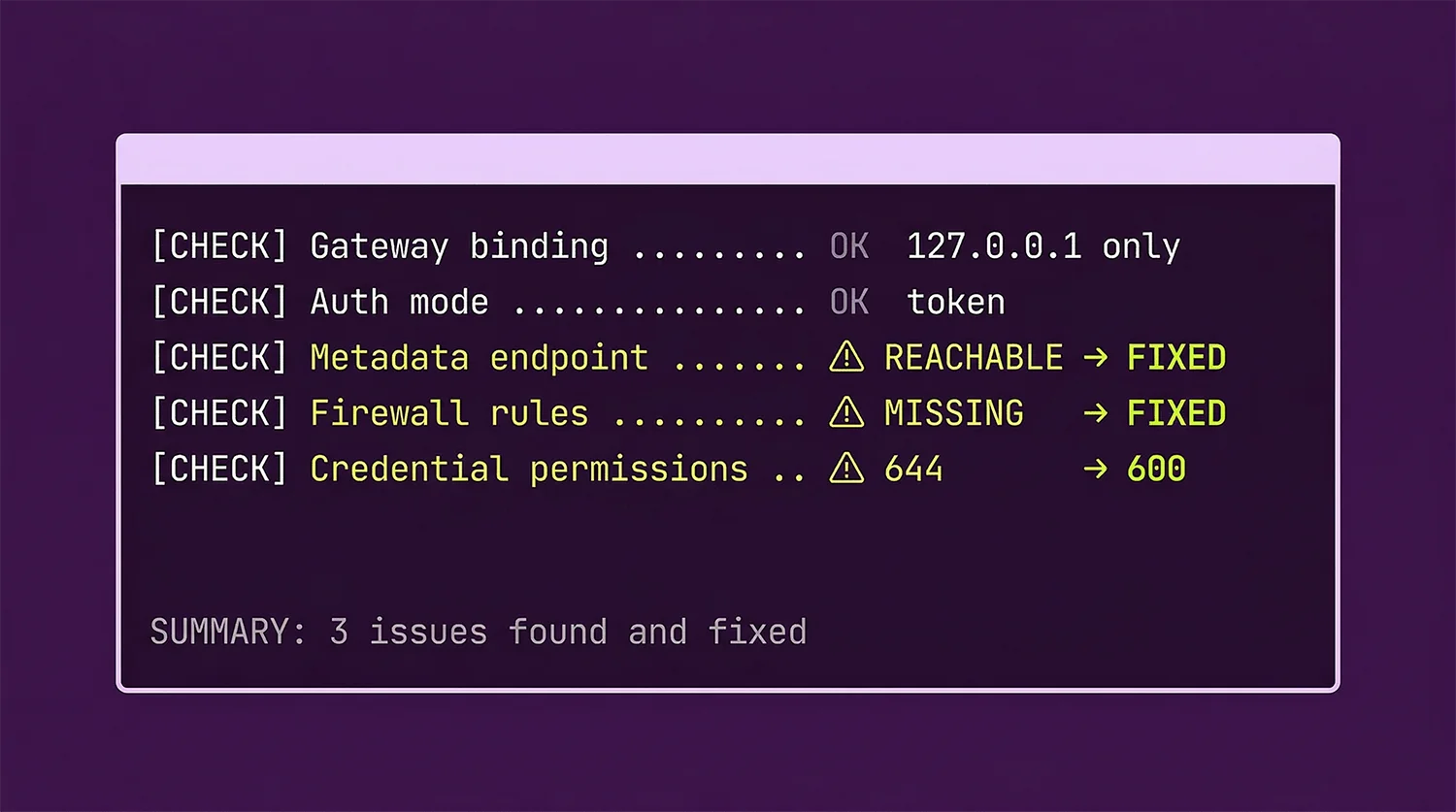
33 checks across 8 sections — gateway, metadata endpoint, file permissions, Telegram security, and more. Print it, tick it off, done.
Download the PDF
What This Audit Doesn’t Cover
The manual script above checks the things you can verify from the server. CNCERT’s advisory flagged three additional risks that a server-side audit can’t catch — they require judgment calls rather than commands.
Malicious skills from ClawHub. CNCERT specifically named this as a primary real-world attack vector. Anyone can publish a skill to ClawHub — there’s no code review process. A skill could exfiltrate your credentials, execute arbitrary commands, or add a backdoor through a seemingly useful integration. The only protection is only installing skills from authors you recognise, and reading what a skill actually does before running it. My audit can’t check this for you.
Elevated tool access open to all paired users. My config had tools.elevated.allowFrom.telegram: ["*"] — meaning any paired Telegram user gets elevated (host-level) access. Since only one user is paired and DM policy is set to pairing, the practical risk is low. But locking this to your specific Telegram user ID removes the risk entirely:
# Find your Telegram numeric ID by messaging @userinfobot
# Then update your config:
nano /home/openclaw/.openclaw/openclaw.json
# Change: "telegram": ["*"]
# To:     "telegram": ["YOUR_NUMERIC_ID"]
sudo systemctl restart openclaw
Runaway API spend from a prompt-injected agent. If a malicious instruction tricks your agent into a loop, it can burn through API credits fast — this isn’t a data breach, but a $200 surprise bill is still a bad outcome. Both Anthropic and Google AI Studio have spending caps you can set in their dashboards. Set them now, before you need them.
Your OpenClaw Security Checklist
Run these after any fresh install. Copy and paste each command into your server terminal and check the output against what it should say.
Do these immediately:
-
ss -tulpn | grep 18789— the result should say127.0.0.1, not0.0.0.0. If it says0.0.0.0, your control port is public. -
openclaw config get gateway.auth.mode— should returntoken. Anything else means the gateway has no password. -
curl -s --max-time 3 http://169.254.169.254/metadata/v1/ && echo "REACHABLE" || echo "blocked"— should returnblocked. If it saysREACHABLE, follow the fix in Issue 1 above.
Do these today:
-
openclaw config get channels.telegram.dmPolicy— should returnpairingorallowlist. If it returnsopen, anyone who finds your bot can send it commands. -
ls -la /home/openclaw/.openclaw/*.json— look at the first column of each row. Any file showing-rw-r--r--(644) needs to be locked withchmod 600 <filename>. - Run
openclaw security auditdirectly in your Telegram chat and address any warnings.
Do these this week:
- Log into your DigitalOcean console → Networking → Firewalls. Check that port 18789 is not listed as an allowed inbound rule. (This is separate from the server’s own firewall — both matter.)
- Set a spending cap in your Anthropic and Google AI Studio dashboards, so a runaway agent can’t rack up a large bill.
- If you use Google Calendar, run
ls -la /home/openclaw/.openclaw/google-calendar-key.jsonand verify the permissions show-rw-------(600), not-rw-r--r--(644).
Running OpenClaw for your business and want a second set of eyes on your setup? I offer security reviews and done-for-you configuration for Southeast Asian businesses. Get in touch.
SEA-Specific Notes
DigitalOcean Singapore region: The metadata endpoint block above applies to all DigitalOcean regions, but it’s especially worth doing on SGP1 or SGP2. The risk isn’t unique to Singapore — but if your server holds business data for clients in Singapore or Malaysia, the CNCERT advisory on OpenClaw is something your clients may ask about. Having a documented audit you can share is useful.
CNCERT advisory: In early 2026, China’s national cybersecurity authority issued a formal warning about OpenClaw, specifically naming prompt injection, credential exposure, and malicious skills uploaded to ClawHub as the primary real-world risks. The advisory also recommended blocking the default management port from the internet and avoiding plaintext credential storage — both of which this audit covers. The three issues I found in my own setup map directly onto those categories.
WhatsApp integration: This guide covers Telegram. If you’re running WhatsApp with OpenClaw, note that the WhatsApp integration uses an unofficial library that Meta has been known to detect and ban. Use a dedicated phone number — not your main business line — for anything automation-related.
Frequently Asked Questions
Is OpenClaw safe?
It is safe enough for business use if you keep it patched, and meaningfully unsafe if you do not. OpenClaw had more than 138 disclosed CVEs by April 2026, including CVE-2026-25253 (a one-click remote code execution, February 2026) and CVE-2026-32922 (a 9.9-severity privilege escalation, March 2026). Both were fixed upstream before they were widely exploited, which means the deciding factor is not the software's security record but whether your instance is running a current version. A correctly configured install on an outdated version will pass every configuration audit and still be vulnerable.
What does the OpenClaw security audit skill actually check, and what does it miss?
The ClawHub audit skill runs five checks: whether the control port is exposed to the internet, whether OpenClaw is running as root, whether credentials are stored in plain text, whether config file permissions are restrictive, and whether anything has installed itself for persistence. It takes about 30 seconds. What it misses is everything that is not instance configuration: your cloud provider's metadata endpoint being reachable from the agent, the host firewall having been switched off by another package, credential files outside OpenClaw's own directory, and the version of OpenClaw you are running. That last one is the largest gap, because a fully patched configuration on an unpatched binary reports as clean.
Is OpenClaw safe for business use?
Yes, with proper configuration. A self-hosted OpenClaw installation on a correctly set up server is reasonably safe for personal and small business use. The key things to get right: the control port should only be reachable from the server itself, authentication should require a token, your Telegram bot should require pairing approval, and the server's information desk (the metadata endpoint) should be blocked. Run the checklist above before going live.
What is the biggest security risk with OpenClaw?
Prompt injection — where a malicious email, document, or website tricks your AI agent into taking actions you didn't ask for. The simplest protection is limiting what your agent can actually do: keep the browser tool disabled if you don't need it, and don't give it write access to folders outside its workspace.
Does OpenClaw store my data anywhere outside my server?
No. Self-hosted OpenClaw keeps everything on the server you own and control — your conversations, skills, credentials, and settings. OpenClaw (the company) can't access any of it. This is the main reason to self-host instead of using a cloud-based AI service.
How do I stop strangers from messaging my OpenClaw bot on Telegram?
Run openclaw config get channels.telegram.dmPolicy. If it returns open, anyone who finds your bot's username can send it commands. Switch it to pairing — you'll get a prompt to approve each new user before they can interact with the bot:
openclaw config set channels.telegram.dmPolicy pairing
sudo systemctl restart openclaw
How often should I run this audit?
Run the ClawHub skill monthly — it takes 30 seconds and catches obvious regressions. Run the full manual checklist whenever you install a new skill from an external source, update OpenClaw to a new version, add WhatsApp or a new Telegram bot, or change anything about your server's firewall or domain setup.
If you haven’t set up OpenClaw yet, start with the install guide and the business case for self-hosting your AI assistant. Both cover the setup decisions that affect security from the start. If you’re evaluating OpenClaw against Anthropic’s Claude Managed Agents, the comparison article covers the key differences.
If you're a business in Southeast Asia and want this set up without the trial and error — I offer done-for-you OpenClaw setup and ongoing AI workflow advisory.
Get in touch